A WordPress backup is not a single file you download once and forget about. It is an ongoing process that covers your website’s files, its database, a schedule that matches how often your content changes, and a plan for putting everything back together when something breaks.
Direct Answer
To back up a WordPress website, you need a copy of both your website files (themes, plugins, uploads, and configuration files) and your WordPress database (posts, pages, settings, and user data). Store this copy somewhere separate from your live hosting account, and confirm it can actually be restored before you need it.
Key Takeaways
-
A complete WordPress backup includes both files and the database. Missing either one leaves you with an incomplete copy of your site.
-
Backup frequency should match how often your website changes, not a fixed rule that applies to every site equally.
-
Hosting backups, plugins, and manual methods each have different strengths, and none of them is automatically the right choice for everyone.
-
Storing backups in more than one location reduces the risk of losing everything to a single server failure.
-
A backup is only useful if you know how to restore it, and that restoration process should be understood before an emergency, not during one.
-
Testing a backup periodically is the only way to know whether it will actually work when you need it.
-
Backups should be created before major changes such as updates, theme switches, or migrations, not only on a routine schedule.
What Is a WordPress Backup?
A WordPress backup is a saved copy of the files and data that make up your website at a specific point in time. If your site experiences data loss, corruption, a failed update, or a security breach, that saved copy allows you to rebuild the site as it existed when the backup was created.
The important detail is “as it existed.” A backup from three weeks ago will not include anything published, sold, or changed since then. This is why backup frequency and backup completeness both matter as much as the act of backing up itself.
What Should a Complete WordPress Backup Include?
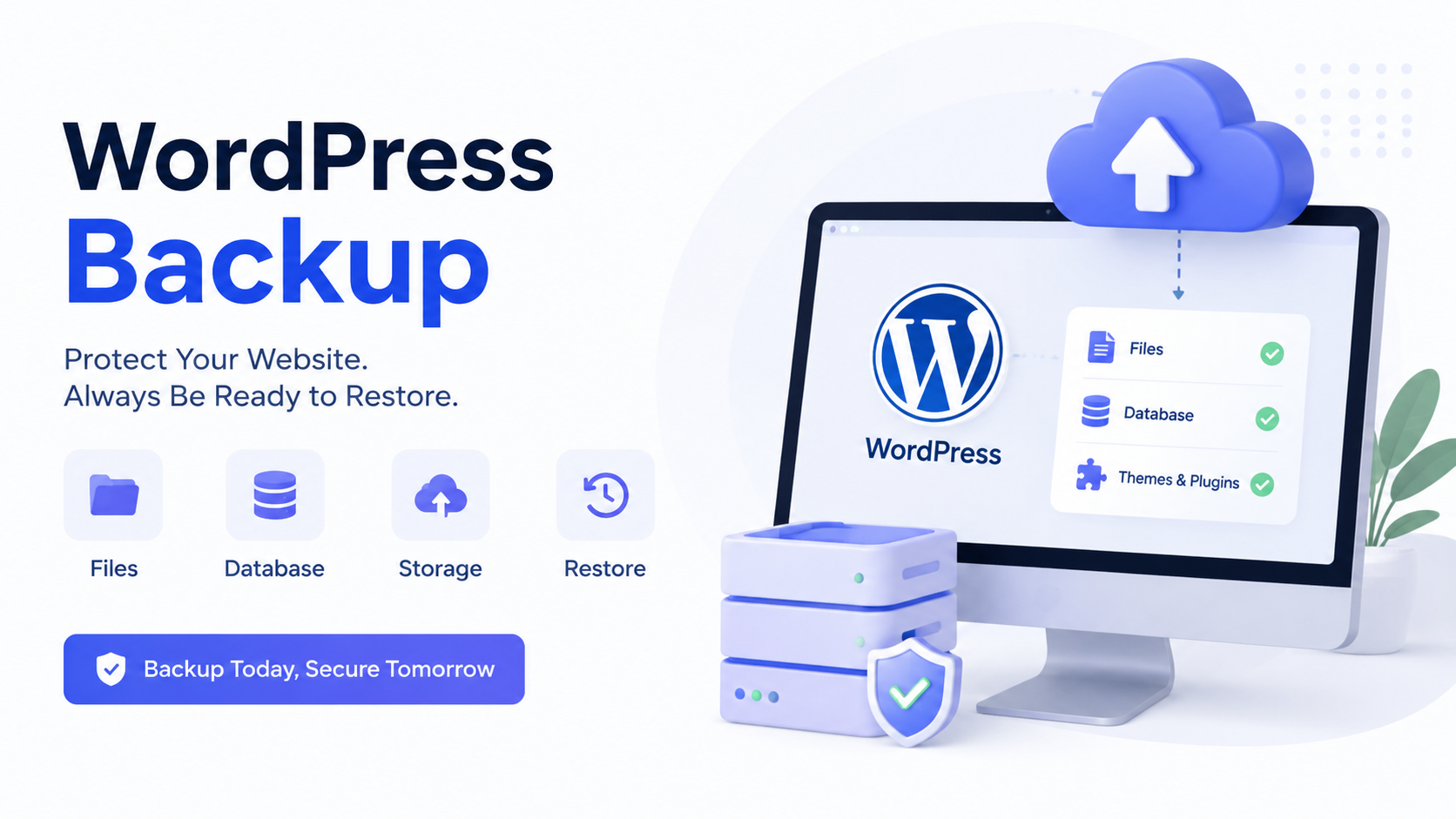
WordPress websites are made of two distinct parts that live in different places on your server: the files and the database. A useful backup captures both.
WordPress Files
Your website’s files include the WordPress core software, your active theme and any inactive ones you keep installed, every plugin, and the media library where images, PDFs, and other uploads are stored. Think of files as the structure and appearance of your site, along with anything users have uploaded.
WordPress Database
The database holds your actual content: blog posts, pages, comments, product listings if you run WooCommerce, user accounts, and most of your site settings. WordPress stores this in a MySQL or MariaDB database, and it is what makes your site dynamic rather than a static collection of pages.
A simple way to think about it: the files contain the theme, plugins, and uploaded images, while the database contains the content and configuration that ties everything together. Backing up only one half leaves you with a site that either has no content or has content but no way to display it correctly.
Configuration and Other Important Files
Beyond core files, themes, plugins, and uploads, a thorough backup also considers wp-config.php, which stores your database connection details and security keys, along with any .htaccess rules or server configuration files specific to your hosting setup. These are small files, but losing them can complicate a restoration even when the rest of your backup is intact.
Why Website Backups Matter
Websites fail for reasons that have nothing to do with negligence. Hosting servers experience hardware failures. Plugin updates introduce compatibility issues. Database tables become corrupted after unexpected server errors. Security incidents happen even on well-maintained sites.
A backup does not prevent any of these problems. What it does is give you a way back. Backups work alongside other protective measures rather than replacing them, which is why a backup strategy is usually discussed as one part of broader WordPress website security practices rather than a standalone fix.
How Often Should You Back Up a WordPress Website?
There is no universal answer here, because the right frequency depends on how often your content and structure change.
Backup Frequency Based on Website Type
A static business website that rarely changes, such as a local service page with a contact form, may only need weekly backups since there is little new data to lose between backup cycles.
A regularly updated blog that publishes new posts several times a week benefits from daily backups, since losing even a few days of content and comments can mean real, unrecoverable work.
An active WooCommerce store processes orders, customer data, and inventory changes constantly. These sites often need backups multiple times a day, since even a few hours of lost order data has direct financial consequences.
A membership website with ongoing user registrations, comments, and course progress faces similar pressure, since user-generated data accumulates continuously and cannot be recreated from memory.
Daily Backups
Daily backups suit most active websites with regular content updates, user interactions, or e-commerce activity. This is the most common baseline for sites that are not purely static.
Weekly Backups
Weekly backups can be sufficient for smaller, low-traffic, or rarely updated sites, though even these benefit from an extra backup whenever a change is made outside the routine schedule.
Before Major Changes
Regardless of your regular schedule, create an additional backup before updating WordPress core, plugins, or themes, before switching to a new theme, and before editing functions. php or other code directly, before migrating to a new host or domain, and before making significant configuration changes such as altering permalink structures or security settings.
This habit matters because scheduled backups run on a timer, not in response to what you are doing. If something breaks five minutes after you made a change, your last scheduled backup might be a day old, while a fresh manual backup captures the exact state right before the risk was introduced. This is also the point where it helps to update WordPress safely rather than applying updates directly to a live site without a recent backup in place.
The Different Ways to Back Up a WordPress Website
There are three general approaches, and most website owners end up using some combination of them rather than relying on just one.
Option 1: Hosting Provider Backups
Many WordPress hosts include automatic backups as part of their hosting plans. This is convenient because it requires no setup and often includes simple one-click restoration through the hosting dashboard.
The limitations depend entirely on the specific host. Retention periods vary widely, some providers keep only the last few days of backups, while others keep 30 days or more. Backup frequency also varies, and not every plan includes daily backups by default. Restore options range from fully automated to requiring a support ticket.
Because these variables differ so much between hosts, it is worth checking your specific hosting provider’s documentation rather than assuming your plan includes comprehensive backup coverage. Hosting backups are a strong first layer, but treating them as your only backup location means your website and your only backup copy live on the same infrastructure.
Option 2: WordPress Backup Plugins
Backup plugins automate scheduling, file backups, database backups, and often remote storage and restoration, all from within the WordPress dashboard. This makes them a practical choice for site owners who want more control than hosting backups offer without manually handling server files.
Options like UpdraftPlus, Duplicator, and BlogVault are commonly used for this purpose, and each has documentation on its official website covering setup and storage integrations. Rather than comparing every available plugin, the more useful question is whether a given plugin supports scheduled backups, offsite storage such as cloud storage integration, and a restoration process you can actually follow.
Option 3: Manual WordPress Backups
A manual backup means downloading your website files through your hosting file manager or FTP and exporting your database through a tool like phpMyAdmin, which most hosts provide.
This approach gives you full control and does not depend on a plugin staying updated or compatible with your WordPress version. It also requires more careful handling, since manual backups will not run themselves, and forgetting to repeat the process regularly is a common way manual backups fall out of date. Manual backups work best as a supplement to automated methods rather than a full replacement for them.
How to Back Up a WordPress Website Step by Step
How to Back Up WordPress Files
-
Access your website files through your hosting control panel’s file manager or an FTP client.
-
Locate your WordPress root directory, which typically contains folders like
wp-content,wp-admin, andwp-includes. -
Select the full directory, or at minimum the
wp-contentfolder along withwp-config.php, and compress it into a downloadable archive. -
Download the archive to a device or storage location separate from your hosting account.
How to Back Up the WordPress Database
-
Log into phpMyAdmin or a similar database tool through your hosting dashboard.
-
Select the database associated with your WordPress installation.
-
Use the export function, choosing the SQL format, which is the standard format WordPress uses for database exports.
-
Download the exported file and store it alongside your files backup, ideally labeled with the date it was created.
Together, these two steps produce a complete backup. Skipping either one means you have only half of what is needed for a full restoration.
Where Should You Store WordPress Backups?
Backups can be stored in your hosting environment, on local storage such as an external drive, in cloud storage services like Google Drive or Dropbox, or through dedicated remote backup storage offered by some backup plugins.
The general principle worth following is keeping at least one backup copy separate from the live website. If your hosting account is compromised or a server fails entirely, a backup stored only in that same environment disappears along with the site. There is no single formula that fits every website, but relying exclusively on one storage location, especially the one your site already lives on, removes the safety net a backup is supposed to provide.
Why You Should Not Rely on Only One Backup Copy
A single backup copy is vulnerable to the same risks it is meant to protect against. A corrupted file, an accidentally deleted folder, or a storage service outage can affect one copy just as easily as it can affect your live site.
Keeping more than one copy, ideally across more than one location, reduces the chance that a single point of failure takes out both your website and your only way of recovering it. This does not need to be complicated. Even keeping a hosting backup alongside one additional copy in cloud storage meaningfully improves your position compared to relying on either one alone.
How to Restore a WordPress Backup
Restoration is the part of the backup process that gets the least attention until it is urgently needed. Before an incident happens, it helps to know exactly where your backups are stored, which backup version applies to the problem you are facing, and what steps your specific backup method requires for restoration.
Hosting backups typically offer a restore option directly in your hosting dashboard. Backup plugins usually include a restoration feature within WordPress itself, guided by the plugin’s interface. Manual backups require re-uploading files to their original directories and re-importing the database export through phpMyAdmin, followed by updating wp-config.php if any database credentials have changed.
Restoration is not guaranteed to work perfectly in every situation. Server environments change, plugin versions shift, and a backup taken under one set of conditions may need adjustments to work under another. This is part of why understanding the process matters more than assuming any single click will always solve the problem. If your site is already broken and you are trying to figure out what happened before restoring anything, a structured approach to WordPress site recovery can help you diagnose the cause first.
How to Test Whether a Backup Actually Works
A backup that has never been restored is an assumption, not a guarantee. Periodically confirming that your backups are complete and usable is the only way to know they will hold up when needed.
The safest way to test this is in a staging environment, a private copy of your site separate from the live version, rather than experimenting directly on your production site. Many hosts offer built-in staging tools, and some backup plugins support restoring to a staging area directly. This lets you confirm that files extract properly and the database imports without errors, without risking any disruption to visitors.
Common WordPress Backup Mistakes
Certain patterns show up repeatedly among sites that lose data unnecessarily.
-
Backing up only the database and assuming that covers the whole site.
-
Backing up only files and leaving out the database entirely.
-
Keeping the only backup copy on the same server as the live website.
-
Never checking whether scheduled backups actually completed successfully.
-
Not knowing where backups are stored or how to access them when needed.
-
Relying on outdated backups without ever refreshing them.
-
Creating backups but never testing whether they can be restored.
-
Assuming the hosting provider automatically handles complete, long-term backup coverage.
-
Creating backups inconsistently, with long gaps between them during active periods of site changes.
A Practical WordPress Backup Strategy
There is no single required workflow, but a reasonable example for a regularly updated WordPress blog might look like this: automatic scheduled backups running daily through a backup plugin, an additional manual backup created before any major update or theme change, at least one backup copy stored in cloud storage separate from the hosting account, and a periodic check, perhaps monthly, to confirm the most recent backup can actually be restored in a staging environment.
A different site, such as a low-traffic static business page, might reasonably operate on a lighter weekly schedule with the same off-site storage principle applied. The specific numbers matter less than the underlying habits: back up consistently, store copies separately, and verify that what you have actually works. If you are also working on speeding up a WordPress website, that is a good moment to create a fresh backup first, since performance changes often touch caching, database structure, or theme files directly.
WordPress Backup Checklist
-
Confirm your backup includes both website files and the full database.
-
Set a backup schedule that matches how often your site changes.
-
Create an extra backup before updates, theme changes, or migrations.
-
Store at least one backup copy separate from your live hosting environment.
-
Keep more than one backup version rather than overwriting the only copy each time.
-
Know exactly where each backup is stored and how to access it.
-
Test a restoration periodically in a staging environment.
-
Review your backup plugin or hosting settings occasionally to confirm backups are still running.
Conclusion
A WordPress backup is only as useful as its weakest link, whether that is a missing database export, a single storage location, or a restoration process nobody has actually tried. Building a real backup strategy means backing up both files and the database, choosing a schedule that fits how your site actually changes, storing copies in more than one place, and periodically confirming that everything you have saved can genuinely be put back together. None of this guarantees a perfect outcome every time something goes wrong, but it puts you in a far stronger position than discovering, in the middle of a crisis, that the backup you were counting on never existed in a usable form.

Jigar Pandya
Jigar Pandya is a Technology and WordPress professional with over 6 years of experience building and improving websites. His work covers WordPress development, website performance, and modern web technologies, with a focus on creating websites that are fast, reliable, and easy to use.