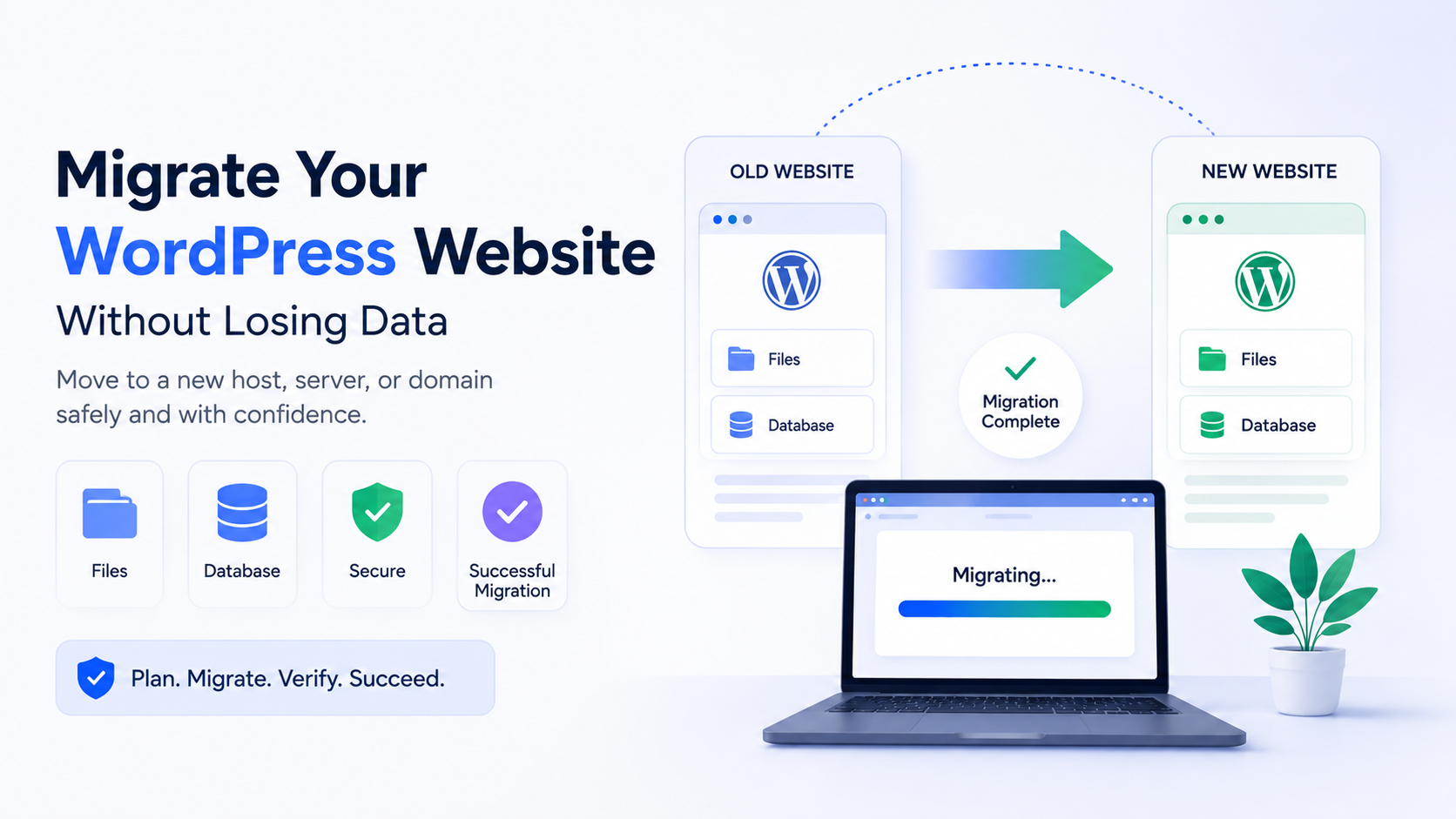
Moving a website from one host to another sounds simple until you actually try it. Files need to travel, a database needs to survive the trip intact, and the new environment needs to behave exactly like the old one, or close enough that visitors never notice the change happened. If you migrate WordPress website content without a plan, small oversights turn into missing images, broken forms, or a site that simply will not load.
This guide walks through what a WordPress website migration actually involves, how to prepare for it, the main methods available in 2026, and how to verify that everything survived the move.
Direct Answer
To migrate a WordPress website, you prepare a complete copy of your files and database, transfer them to the new hosting environment, update configuration details such as database credentials and URLs, and test the site thoroughly before pointing your domain to it. The exact steps vary depending on your hosting provider, chosen migration method, and how your website is set up.
Key Takeaways
-
A WordPress migration involves both website files and the database, not just one or the other.
-
The right method depends on your technical comfort, hosting provider, and website complexity.
-
Active websites such as stores or membership sites need extra care because data can change during the move.
-
Testing after migration is not optional; it is where most problems get caught before visitors do.
-
Domain and URL changes introduce additional steps beyond a standard host-to-host move.
-
Having a rollback plan reduces the risk if something does not work as expected on the new server.
-
No migration method can promise zero downtime or a perfectly identical copy in every case.
What Does It Mean to Migrate a WordPress Website?
WordPress website migration means moving a website from one environment to another while keeping its content, design, and functionality intact. That environment change could involve a new hosting account, a different server, a new domain name, or moving a site from a local or development setup into a live production environment.
Every WordPress site really has two things working together: a set of files sitting on a server and a database holding the content and settings those files reference. Migration means relocating both, then making sure they can still talk to each other correctly once they land in the new place.
Not every migration looks the same. Moving to a new host on the same domain is different from moving to a new domain entirely, and both are different from pushing a development environment live. Each scenario carries its own considerations, so treating every migration as identical is where a lot of avoidable mistakes start.
When Should You Migrate a WordPress Website?
Moving to a New Hosting Provider
This is the most common reason for migration. Website owners often switch hosts because of performance, pricing, support quality, or outgrowing a shared hosting plan. The site content usually stays the same; only the physical location of the files and database changes.
Changing Servers
Sometimes the hosting provider stays the same, but the underlying server changes, for instance during an infrastructure upgrade or a plan change within the same company. This can still involve moving files and database data to a new server instance.
Moving to a New Domain
Rebranding, merging websites, or correcting a domain choice can all require a full domain migration. This is more involved than a simple host change because URLs embedded throughout the content and database need updating.
Moving Between Development Environments
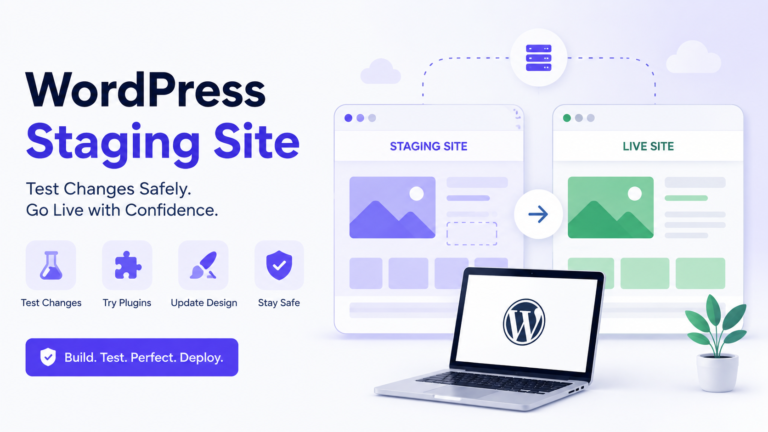
Many sites are built or heavily modified in a local or staging environment before going live. Pushing that version into production is technically a migration too, since files and database content are moving from one environment to another.
What Should You Prepare Before Migrating a WordPress Website?
Preparation is where most successful migrations are actually won. Rushing into a transfer without reviewing what you have increases the chance of missing files, incompatible software versions, or configuration mismatches on the other end.
Create a Complete Backup
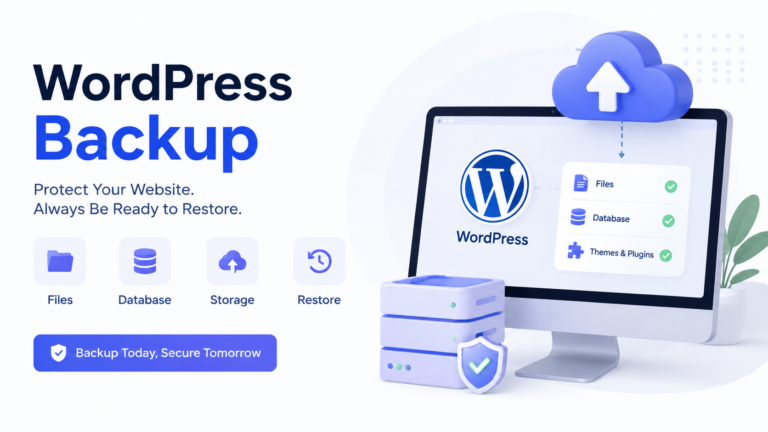
Before making any changes, put together a current, complete copy of your website. It is worth being clear that a backup and a migration are not the same activity. A backup exists to give you something to restore from if something goes wrong. A migration is the actual process of moving your site to a new environment. Having a recent WordPress backup style safety net in place before you touch anything gives you a recovery option if the migration itself runs into trouble.
Review Your Website Files and Database
Take stock of what your site actually contains: theme files, plugin files, uploaded media, and any custom code, alongside the database tables that hold your posts, pages, settings, and plugin data. Larger sites with years of uploads or extensive WooCommerce order history will naturally take longer to move and verify.
Check PHP and WordPress Compatibility
Confirm that the new hosting environment supports a PHP version and WordPress version compatible with your current theme and plugins. A mismatch here is one of the more common causes of a broken site immediately after migration.
Record Important Configuration Details
Note down details like your current database name, table prefix, any custom constants in wp-config.php, and special server rules such as .htaccess redirects or caching rules. These details often need to be recreated manually in the new environment.
Plan for Changes to Live Data
If your website is actively receiving orders, form submissions, comments, or new content while you prepare to migrate, that data can change right up until the moment you switch over. Websites such as WooCommerce stores, membership platforms, or high-traffic blogs deserve extra attention here, since new information may continue to be created during the migration window.
How to Migrate a WordPress Website
There are three broad approaches, and the right one depends on your comfort level, your hosting provider, and how complex your site is.
Method 1: Use a Hosting Provider Migration Service
Many hosting providers offer a migration tool or a dedicated migration service to help move a site onto their platform. This can reduce manual work considerably and often comes with provider-specific guidance for your particular setup.
That said, not every host offers this for free, and the scope of what is included can vary widely between providers. Before relying on this option, confirm exactly what the service covers, whether it includes the full database and all files, and whether there are limitations on site size or complexity.
Method 2: Use a WordPress Migration Plugin
Migration plugins are built specifically to package your files and database into a transferable format and move them to a new destination. They can simplify a process that would otherwise require manual file transfers and database work.
If you choose this route, review the plugin’s current documentation on its official website before starting, since features, size limits, and supported destinations change over time. Follow the instructions provided for that specific plugin rather than assuming every migration plugin works identically.
Method 3: Migrate WordPress Manually
A manual migration gives you the most control but requires more technical familiarity. The general process looks like this:
-
Copy the WordPress files from the current server to your computer or directly to the new server.
-
Export the database using a tool such as phpMyAdmin or a command-line utility.
-
Create a new database on the destination server.
-
Import the exported database into that new database.
-
Upload the website files to the new server.
-
Update configuration settings so WordPress can connect to the new database.
-
Test the migrated website thoroughly before making it live.
This method may require more technical knowledge than the other two, particularly around database imports and server configuration, so it suits users who are comfortable working outside the WordPress dashboard.
How to Move WordPress Files
Your website files include the WordPress core software, your active theme, installed plugins, uploaded media in the wp-content folder, and configuration files like wp-config.php and .htaccess. These are typically transferred using FTP, SFTP, or a file manager provided by your host. The exact contents can vary depending on your site, since some setups include custom code or additional directories beyond the standard WordPress structure.
How to Move the WordPress Database
The database holds your posts, pages, comments, user accounts, and most plugin settings. It is exported as a SQL file, then imported into a newly created database on the destination server. The new database needs its own username, password, and host details, which then get referenced in your site’s configuration file.
How to Update Configuration Settings
Once files and the database are in place, it wp-config.php needs to point to the new database name, username, password, and host address. If the table prefix differs between the old and new setup, that needs to be reflected here as well.
How to Handle Domain Changes and URLs
Moving to a new domain introduces extra considerations beyond a standard host change. Internal links, media URLs, and stored site addresses in the database often reference the old domain and need to be updated so pages, images, and links resolve correctly. If you are changing from HTTP to HTTPS at the same time, that needs planning too.
Redirects from the old domain to the new one help preserve existing links and give search engines a clear signal about the site’s new location. Domain migrations should be planned carefully, since both visitors and search engines rely on consistent signals to find your content in its new place.
How to Test Your WordPress Website After Migration
Testing is not a formality. It is the step that actually confirms the migration worked, and it deserves focused attention on the parts of your site people actually use.
Check Pages and Navigation
Open your homepage and a sample of key pages. Confirm the layout renders correctly and menus lead where they should.
Test Forms
Submit a test entry through any contact or lead forms to confirm they still deliver correctly after the move.
Check Images and Media
Scroll through pages with images and media embeds to catch any broken links left over from the transfer.
Test Login and User Accounts
Confirm that admin and user logins work, and that account-specific pages load correctly for different roles if your site has them.
Check Plugins and Theme Functionality
Walk through any plugin-driven features, such as booking systems, galleries, or custom theme functionality, to confirm they behave as expected in the new environment.
Check Important Website Features
For an online store, this means testing browsing, adding items to a cart, checkout, and account access. For a membership site, it means confirming access controls still work correctly. Focus your testing on whatever your site’s most important user journey actually is.
Check Mobile Responsiveness
View the site on a mobile device or browser emulator to confirm nothing shifted or broke in the new environment.
How to Avoid Problems During a WordPress Migration
A few habits reduce risk considerably, though none of them guarantee a flawless outcome:
-
Prepare thoroughly before starting, rather than migrating under time pressure.
-
Keep a current backup available separate from the migration itself.
-
Confirm PHP and WordPress compatibility on the destination server ahead of time.
-
Avoid making unrelated design or plugin changes during the migration window.
-
Understand exactly what your chosen migration method includes and what it does not.
-
Account for live data that may continue changing until the final switch.
-
Test in the new environment before fully relying on it, ideally using a WordPress staging site style setup where your host supports one.
-
Review DNS and domain settings carefully if a domain change is involved.
-
Monitor the site closely in the hours and days after launch.
What to Do If Something Goes Wrong
If the migrated site does not behave as expected, the right response depends on the specific symptom.
-
Review any error messages displayed on the site or in server logs.
-
Double-check the database connection details in your configuration file.
-
Confirm file permissions are set correctly if you are seeing access errors.
-
Verify that site URLs in the database match the new environment.
-
Check migration logs if your plugin or hosting service provides them.
-
Fall back to your backup or rollback plan if the issue cannot be resolved quickly.
-
Contact your hosting provider directly if the issue appears to involve their server environment.
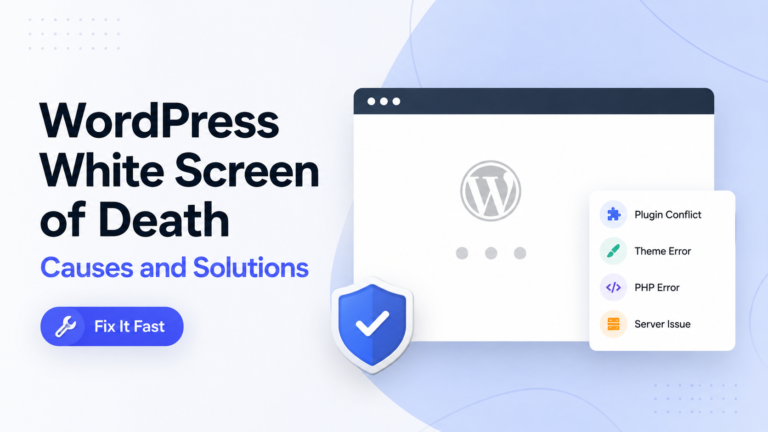
If your site becomes fully inaccessible or shows a critical error after the move, the same troubleshooting mindset used for WordPress site recovery after a bad update applies here too: isolate the change, check the logs, and restore from your backup if needed rather than guessing at fixes.
Common WordPress Migration Mistakes
-
Migrating without a current, verified backup in place.
-
Forgetting to move the database along with the files.
-
Using a PHP version on the new server that is incompatible with your theme or plugins.
-
Skipping a compatibility check on plugins before switching over.
-
Ignoring the fact that live data may keep changing during the process.
-
Changing DNS settings without a clear plan for the transition period.
-
Testing only the homepage and assuming the rest of the site is fine.
-
Forgetting to test forms and login functionality specifically.
-
Missing images or media files that did not transfer correctly.
-
Not checking whether internal links still point to valid pages.
-
Making several major changes, such as a new host, new domain, and new theme, all at once.
-
Assuming the migration succeeded without actually testing the result.
A Practical WordPress Migration Workflow
-
Review your current website and the new environment’s requirements.
-
Create a current backup before making any changes.
-
Choose the migration method that fits your technical comfort and site complexity.
-
Move the required files and database to the new environment.
-
Update configuration details to match the new setup.
-
Test the migrated environment thoroughly before switching over.
-
Review important functionality specific to your website’s purpose.
-
Plan the final domain or DNS switch carefully.
-
Monitor the live website closely after the migration completes.
-
Keep the previous backup available according to your own recovery plan.
This workflow can vary depending on your site’s complexity, your migration method, and whether a domain change is part of the move.
WordPress Migration Checklist
-
Current backup completed and verified.
-
All website files identified and included.
-
Database exported and included.
-
New hosting environment prepared and confirmed compatible.
-
PHP and WordPress version compatibility checked.
-
Configuration settings reviewed and updated.
-
Domain and DNS settings reviewed if applicable.
-
Key pages tested on the new environment.
-
Forms tested and confirmed working.
-
Login and user accounts tested.
-
Media and images checked for broken links.
-
Mobile experience checked.
-
Core business functions tested, such as checkout or bookings.
-
Live website checked again after the final switch.
Once your site is stable in the new environment, it is also worth taking a fresh look at WordPress website performance and confirming your plugins and core files are current, following a process like the one used to update WordPress safely, since a new server or host can shift what settings are worth revisiting.
Conclusion
A successful WordPress website migration comes down to treating it as a process rather than a single copy-and-paste action. Preparing properly, understanding what needs to move and why, choosing a method that matches your situation, and testing carefully afterward are what actually protect your content and functionality during the transition. There is no method that removes every risk entirely, but a website owner who plans ahead, checks compatibility, and verifies the result thoroughly gives their migration the best possible chance of going smoothly.

Jigar Pandya
Jigar Pandya is a Technology and WordPress professional with over 6 years of experience building and improving websites. His work covers WordPress development, website performance, and modern web technologies, with a focus on creating websites that are fast, reliable, and easy to use.