
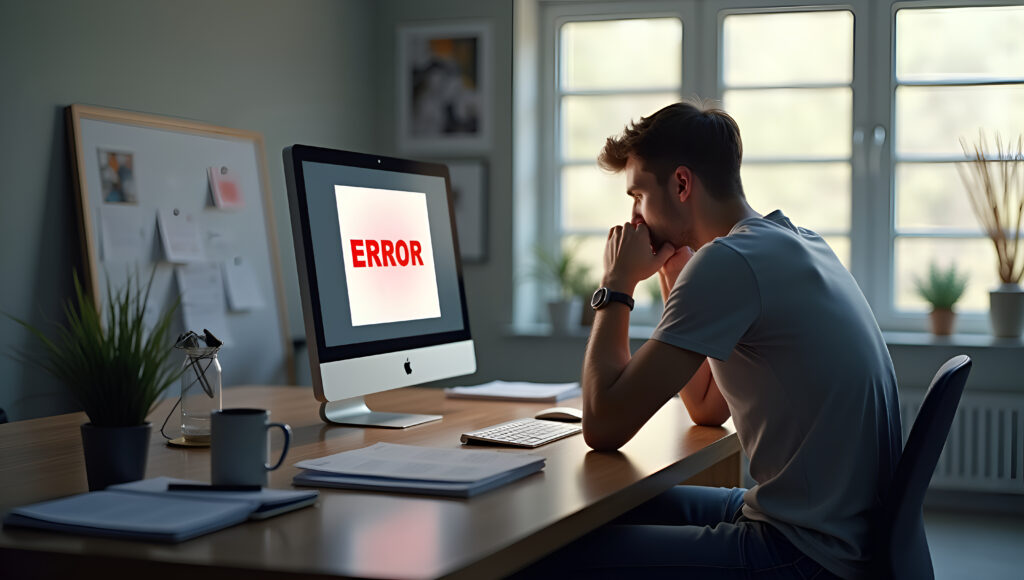
It usually happens right after you click update. The plugin list refreshes, the page reloads, and instead of your homepage, you see a critical error, a blank white screen, a stuck maintenance message, or a dashboard that simply will not load. If you run an online store, the worst version of this is a customer messaging you that checkout is broken while you are still staring at the error.
The instinct in that moment is to start clicking. Update another plugin, hoping it resolves things. Switch themes. Restore last month’s backup. Reinstall WordPress core. Each of these might help or might erase the one clue that would have told you exactly what broke. When you change several things at once, you lose the ability to know which change actually fixed the site, and you may also lose recent orders, comments, or user accounts along the way.
This guide walks through a controlled recovery process built around six steps: Stabilize, Identify, Isolate, Recover, Verify, and Prevent. It is written for the moment your WordPress site stops working after a core, plugin, theme, page builder, PHP, or hosting update, and it focuses on finding the actual cause rather than guessing your way to a fix.
Direct answer: When a WordPress site stops working after an update, stop making further changes. Take a screenshot of the error, note the exact time it appeared, and check whether wp-admin still loads. Then identify which component was updated immediately before the failure, since that update is almost always the cause.
Key takeaways
- A WordPress site rarely breaks for no reason. It breaks because something changed, and that something is usually the most recent update.
- Making multiple changes at once, such as deactivating every plugin and switching themes together, destroys the evidence you need to identify the real cause.
- The visible symptom, whether it is a critical error, a white screen, or a stuck maintenance message, points toward a specific type of failure and a specific first check.
- WordPress Recovery Mode can restore admin access temporarily, but it does not repair the underlying conflict.
- A full database restore can quietly delete every order, form submission, comment, or user account created since that backup was made.
- Debug logs, not guesswork, reveal the first fatal error and the exact file or plugin responsible.
- Recovery is not complete when the homepage loads again. It is complete when you have confirmed the cause and tested every critical function.
Stop Making Additional Changes
Before touching anything else, resist three common reflexes: updating more plugins to see if a newer version fixes things, deleting files you do not recognize, and restoring an old backup immediately. Each of these can remove the exact evidence that points to the cause.
Record what you know right now.
- Write down the exact error text if one is showing.
- Note the time the site stopped working, so you can compare it against your update log or hosting activity log.
- Check your email inbox for a WordPress Recovery Mode notice, which WordPress core sends automatically when it detects a fatal error.
- Check whether an automatic backup exists from just before the update, separate from any older scheduled backup.
This single pause, just a few minutes of observation before action, is what separates a five-minute fix from a multi-hour cleanup.
What Does Not Working Mean?
The phrase covers several very different failures, and each one points toward a different starting check.
| Symptom | Likely cause | First check |
|---|---|---|
| Critical error message | PHP fatal error from a plugin, theme, or core conflict | Check the Recovery Mode email and debug log |
| White screen with no text | PHP fatal error with error display disabled | Enable WP_DEBUG_LOG and reload the page |
| Stuck maintenance message | Update process interrupted before completion | Check for a leftover .maintenance file |
| Broken layout or missing styles | Cached assets conflicting with updated theme or plugin files | Clear page builder, WordPress, and hosting cache in that order |
| wp admin unavailable | Plugin or theme conflict blocking the dashboard specifically | Disable the suspected plugin through SFTP |
| Checkout or form failure | Payment gateway or form plugin incompatible with the new version | Test in an incognito window and check payment gateway logs |
| Error 500 from the server | PHP fatal error or exhausted memory limit | Check hosting error logs and PHP memory limit |
| Old content or outdated styles showing | Aggressive caching still serving a previous version | Purge CDN and hosting level cache |
| Database connection error | Incorrect database credentials or an unresponsive database server | Confirm wp config.php values and hosting database status |
Check Which Part of the Website Has Failed
Not every failure affects the whole site equally. It helps to separate the problem into four categories.
- Frontend failure: Visitors see a broken or blank page, but you may still be able to log into wp-admin normally.
- WP admin failure: the public site loads fine, but the dashboard itself throws an error, often because of an admin-only plugin conflict.
- Business function failure: the site looks normal, but a specific feature, such as checkout, a booking form, or email notifications, has stopped working.
- Complete application failure: neither the frontend nor the admin area loads at all, usually pointing to a PHP fatal error affecting the entire application or a database connection problem.
Knowing which category you are in immediately narrows your next step and prevents wasted effort troubleshooting parts of the site that were never affected.
Identify What Changed Before the Website Stopped Working
The cause is almost always the most recent change. Work through this list in order and note anything that applies.
- Was WordPress core updated to a new version?
- Was a plugin updated, especially one connected to checkout, forms, security, or caching?
- Was the active theme or a theme framework updated?
- Was a page builder such as Elementor, Divi, or Beaver Builder updated?
- Did your hosting provider upgrade the PHP version, sometimes automatically?
- Did your host change server settings or migrate your account?
- Were several of these updated in the same session, which is common with automatic update settings and makes isolation harder?
If you use a hosting control panel or a plugin like WP Activity Log, check the update timestamps against when the failure began. This single comparison often identifies the culprit before you write a single line of debug code.
Check the WordPress recovery mode email.
When WordPress core detects a fatal error, it automatically pauses the site for regular visitors, shows a generic error message on the front end, and emails the site administrator a special link into recovery mode. According to WordPress Developer Resources, this feature exists specifically to give administrators a way back into wp-admin when a plugin or theme has broken the site, without exposing technical error details to the public.
Clicking the Recovery Mode link logs you into wp-admin with the problematic plugin or theme automatically deactivated for that session. From there you can see which plugin was flagged, deactivate it properly, and investigate further. Recovery Mode is a temporary bridge back into your dashboard. It does not fix the plugin, update the incompatible code, or prevent the same error from happening again once you reactivate that plugin.
Fix WordPress Stuck in Maintenance Mode
Sometimes an update is interrupted, whether by a lost connection, a server timeout, or closing the browser too early. WordPress leaves a small file called . maintenance in your site’s root directory while an update is running and normally deletes it automatically when the update finishes. If the update never completes, that file remains, and every visitor sees a maintenance message instead of your site.
To resolve this:
- Connect to your site through SFTP or your hosting file manager.
- Locate the maintenance file in the root folder, the same location as wp config.php.
- If you are confident no update is actually in progress, delete this specific file to restore normal access.
Be careful here. Only remove the .maintenance file itself. Do not delete other files in the root directory that you do not recognize, since some of them are essential to the WordPress core, and removing them can cause a far more serious failure than the one you started with.
What to Do When You Can’t Access wp-admin
If wp-admin still loads, you are in a better position because you can investigate directly instead of relying on SFTP.
- Start with the single component you identified as updated last, not with every plugin at once.
- Deactivate that one plugin or switch temporarily away from that one theme, then reload the site.
- If the error disappears, you have found your cause with a single, reversible action.
- If it does not, reactivate that component and move to the next most recently updated one.
This one-at-a-time approach takes slightly longer than disabling everything simultaneously, but it tells you exactly what caused the failure, which matters enormously once you need to decide whether to update again, roll back, or contact the plugin developer.
What to Do When wp-admin Is Not Working
When the dashboard itself will not load, you need to work from outside WordPress entirely, using SFTP or your hosting file manager.
- Navigate to the plugins folder at wp content/plugins.
- Locate the folder for the plugin you suspect caused the failure, based on your update timeline.
- Rename that single folder, for example, changing elementor to elementor_disabled.
- WordPress cannot find an active plugin whose folder has been renamed, so it automatically deactivates it, exactly as if you had switched it off from the dashboard.
Reload wp-admin. If it now loads normally, you have confirmed the plugin responsible. From there, log into the dashboard, check for an available update or a known compatibility note from the plugin developer, and decide whether to reinstall an older, working version of that plugin rather than leaving it disabled indefinitely.
Use WordPress Debug Logs to Find the First Fatal Error
When the cause is not obvious from the update timeline alone, WordPress’s built-in debugging system gives you the exact file and line number where the failure occurred. Add the following to your wp-config.php file, placed above the line that says “That’s all, stop editing”:
define( ‘WP_DEBUG’, true );
define( ‘WP_DEBUG_LOG’, true );
define( ‘WP_DEBUG_DISPLAY’, false );
@ini_set( ‘display_errors’, 0 );
According to WordPress.org documentation, WP_DEBUG_LOG writes errors to a file at wp content/debug.log rather than displaying them publicly, which is why WP_DEBUG_DISPLAY is set to false. This keeps sensitive file paths hidden from visitors while still recording everything for you.
- Reproduce the failure by reloading the affected page.
- Open debug.log through SFTP or your file manager.
- Look for the first fatal error in the file, not the last one, since a single root cause often triggers a cascade of secondary warnings underneath it.
- That first entry typically names the exact plugin file and function where the conflict occurred.
Once you have the information you need, remove these debug lines or set WP_DEBUG back to false. Leaving debugging active on a live production site is not a long-term setting, since the log file can grow large and may reveal technical details you do not want publicly accessible.
Is It a Cache Problem or a Code Failure?
These two produce very different symptoms and require different fixes, and confusing them wastes time.
A cache problem typically shows old content, outdated styling, or a layout that looks slightly wrong rather than completely broken, and it usually affects some visitors or devices but not others. A code failure, by contrast, tends to be consistent for everyone and often includes an explicit error message or a blank page.
Clear cache in this order:
- Page builder cache first, since tools like Elementor and Divi store their own compiled files.
- The WordPress caching plugin, if you use one.
- Any server level or hosting cache.
- CDN cache, if a service like Cloudflare sits in front of your site.
- Finally, test in a private browser window to rule out your own browser cache.
If the issue persists after clearing every layer in that order, you are almost certainly dealing with a code level failure rather than a caching artifact.
Should You Roll Back or Restore a Backup?
These are not the same action, and choosing the wrong one can cost you real business data.
| Recovery method | Best use case | Main risk | Potential data loss | When to choose it |
|---|---|---|---|---|
| Roll back single plugin | One recently updated plugin caused the failure | Older plugin version may lack recent security fixes | Minimal, usually none | When you have identified the exact plugin |
| Rollback theme | A theme or child theme update broke the layout | Losing recent theme customizations | Low | Same as above but for theme |
| Restore full database backup | The cause cannot be isolated and site is completely unusable | Removes everything created since the backup | Orders, comments, users, form entries since that backup | Only as a last resort |
| Restore full site backup | Files and database are both corrupted | Same as above plus older file versions | Same as above | When files themselves are damaged |
A full database restore is often treated as the safe default, but according to WordPress.org’s own backup guidance, restoring a database backup replaces the current database entirely, meaning any orders, form submissions, new user registrations, comments, or content edits made after that backup was taken are permanently lost. Before restoring anything, check your order and comment activity since the backup date, and manually export or note anything that would otherwise disappear.
How to Confirm the WordPress Website Is Fully Recovered
A loading homepage is not proof that the site is fixed. Work through this checklist before considering the incident closed.
- Homepage loads correctly on desktop and mobile.
- Key internal pages load without errors.
- Navigation menus work as expected.
- WP admin login functions normally.
- The content editor opens and saves a test post.
- Media uploads work.
- Contact and lead forms submit successfully.
- Site search returns results.
- Checkout completes a test transaction if you run an online store.
- Payment gateway logs show no new errors.
- Order and notification emails are actually being received.
- User account login and registration work for non-admin accounts.
- Scheduled tasks, such as cron-based emails or automated posts, are still firing.
- Debug log shows no new fatal errors after testing.
- Cache has been cleared and rebuilt cleanly.
- A fresh backup has been taken now that the site is stable.
This last point matters more than it seems. Once your site is working again, that stable state deserves its own backup, separate from whatever state you were recovering from.
Why WordPress Websites Break After Updates
- Plugin compatibility issues occur when a plugin has not been updated to work with the newest WordPress or PHP version.
- Theme compatibility issues are similar, particularly with older or heavily customized themes.
- PHP version changes, sometimes applied automatically by hosting providers, can break code written for an older PHP syntax.
- Custom code added directly to a theme’s functions. php file can conflict with new core or plugin behavior.
- An interrupted update, cut off by a timeout or lost connection, can leave files in an inconsistent state.
- A plugin update can change its database structure, and if that migration fails partway through, related features stop working even though the plugin itself appears active.
- Server resource limits, particularly PHP memory limits, can cause fatal errors immediately after an update that increases a plugin’s resource demands.
- Installing several updates in a single batch removes your ability to know which one actually caused the problem.
How to Prevent the Same Failure Next Time
The long-term fix is not avoiding updates, since outdated software carries its own security risk. It is updating in a way that catches problems before they reach your live visitors.
A dependable workflow looks like this:
- Verified backup
- Staging website that mirrors production
- Compatibility review of the plugins and theme involved
- Controlled updates applied one at a time on staging
- Functional testing of the specific features that matter to your business
- Deployment to production
- A period of monitoring immediately afterward
- Rollback readiness in case something still slips through
Final Recovery Checklist
- Stop making further changes and record the exact error and timing.
- Check the symptom against the table above to identify the likely cause.
- Determine whether the frontend, WP admin, a specific function, or the entire site has failed.
- Identify the most recently updated plugin, theme, or core version.
- Check for a Recovery Mode email from WordPress.
- Remove a stuck object. maintenance file only if no update is genuinely in progress.
- Disable one suspected plugin at a time, through WP admin or by renaming its folder via SFTP.
- Enable debug logging temporarily to find the first fatal error, then disable it again.
- Clear the cache in the correct order before assuming a code-level failure.
- Choose a single component rollback over a full backup restore whenever possible.
- If a full restore is unavoidable, check for and manually preserve recent orders, comments, and user activity first.
- Test every critical function, not just the homepage, before considering the site recovered.
- Take a fresh backup once the site is confirmed stable.
If none of these steps restore the site, or if the failure involves a database connection error, a corrupted core file, or a server-level issue beyond wp-config.php, that is the point to contact your hosting provider or an experienced WordPress developer rather than continuing to experiment on a live production environment.
Recent Posts
-
 13 Best SEO Chrome Extensions in 2026 for Real SEO Work
 -
 How to Update WordPress Safely Without Breaking Your Live Website
 -
 WordPress Site Not Working After an Update? Find the Cause and Recover Safely
 -
 AI Job Search Tools: 7 Practical Ways to Get Hired Faster in 2026
 -
 How to Use ChatGPT for Blogging in 2026: 7 Proven Steps to Create Better, Human-Led Content