
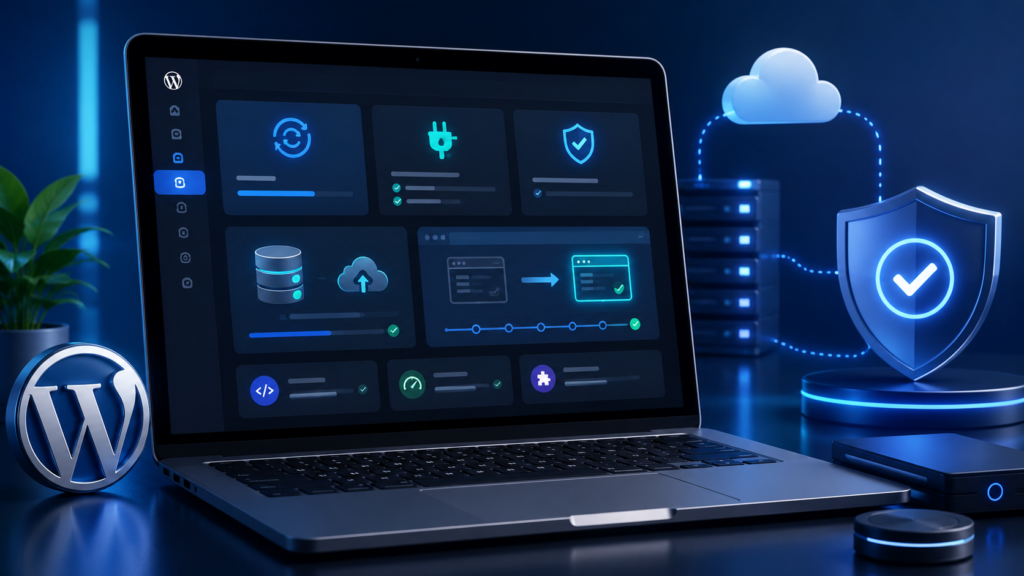
You open wp-admin and see six things waiting: a core update, three plugin updates, a theme update, and a note that PHP 8.3 is available. One plugin runs your checkout, another your booking calendar. You know clicking Update All can turn five minutes into a two-day recovery job, so you close the tab and tell yourself later.
Later is simply not a strategy. Neither is blind faith in the Update Now button.
The safest way to update WordPress is not a single click or one fixed rule. It is a repeatable process that treats your live site like a business asset: assessed, backed up, and verified at every stage. That process runs in eight steps: assess, back up, replicate, test, deploy, verify, monitor, and recover. Each exists because skipping it is exactly where sites break.
Direct answer: The safest way to update WordPress is to assess each update’s urgency, take a verified backup, replicate your live environment on staging, test in controlled groups, then deploy with a rollback point ready and a checklist to confirm nothing quietly broke.
Key Takeaways
- There is no universal rule for updating core or plugins first; order depends on dependencies, compatibility, and staging results.
- A backup only counts once you have confirmed it restores.
- Staging that does not match production’s PHP version, plugins, and server setup can pass tests that fail live.
- Updating everything at once makes failures harder to isolate.
- Copying a full staging database back to production can silently delete orders, form entries, and accounts created while staging was tested.
- A rollback plan must exist before you deploy, not after something breaks.
- The work is not done when the homepage loads; forms, payments, and cron jobs can fail quietly.
Why WordPress Updates Sometimes Break Live Websites
Most breakage traces to specific causes, not bad luck:
- A plugin update can change a function another plugin or your theme depends on.
- An older theme can call functions WordPress has since removed.
- PHP mismatches cause quiet failures: code for PHP 8.x can throw fatal errors on a server running 7.4, and older code can break on newer PHP.
- Page builders like Elementor or Divi store layout data in specific formats, so an update can change how it renders, leaving pages broken with nothing deleted.
- Custom code placed directly in a parent theme or a plugin’s core files gets overwritten the moment that theme or plugin updates, unless it lives in a child theme or a custom plugin.
- Database changes shipped with an update, common in WooCommerce and membership plugins, can fail mid-migration if interrupted.
- Caching serves old files after new ones are installed, and server memory limits or updating core, plugins, and a theme all at once compound the risk further.
Assess the Update Before Installing It
Not every WordPress update carries the same urgency:
- Security-critical – fixes a disclosed vulnerability and deserves fast testing.
- Bug fix – no security angle, can follow your normal schedule.
- Compatibility – aligns a plugin or theme with a new WordPress or PHP version, worth understanding first.
- Feature update – can wait if you do not need it yet.
- Major version—changes core behavior across many files, always deserves a staging test.
- Routine maintenance – minimal risk, can be batched into your next window.
Read the changelog for phrases like “breaking change” or “requires PHP,” and check the plugin’s support forum for recent conflicts. If the update touches WooCommerce, a page builder, or a membership system, that review is not optional.
Create and Verify a Restorable Backup
There is a real difference between having a backup and having a usable recovery point, and most owners learn that difference during an actual emergency.
A backup that protects you includes the following:
- Files and database together, with a matching timestamp
- Storage somewhere other than the server being updated
- A tested restore, not just a file sitting in a folder
Verifying it means restoring the backup, to staging or locally, and confirming the site loads, you can log in, and recent content is present. A backup that is corrupted, incomplete, or missing its database half only reveals itself as unusable when you need it most. Keep a separate, labeled copy of the current live state as your rollback point, distinct from your regular backups.
Create a Staging Website That Matches Production
A staging site is only useful if it matches your live site:
- Same WordPress version
- Same PHP version
- Active theme and version
- Every plugin and version
- Database contents
- Server configuration, caching, and CDN
- Third-party integrations
Here is why this matters: if staging runs PHP 8.1 while your live server runs PHP 7.4, a plugin update can pass every staging test and then throw fatal errors on production. Caching works the same way; a staging site with no cache layer can hide a conflict that only appears once a caching plugin is live. An unrealistic staging environment does not just fail to catch problems; it gives false confidence, which is worse than not testing.
Should You Update WordPress Core or Plugins First?
Most guides give a fixed answer here. There is not one. The order depends on what each update requires and what staging shows you.
| If this is true… | Update in this order |
|---|---|
| A plugin requires a newer WordPress version | Core first |
| A security patch targets a plugin being actively exploited | That plugin first |
| Release notes mention deprecated functions your plugins use | Plugins before core |
| The theme and page builder are tightly coupled | Builder, then theme, then core |
| No dependency exists either way | Test both orders on staging; let results decide |
| Plugins depend on each other (e.g., WooCommerce + payment extension) | Core plugin first, then extensions |
Test Updates in Controlled Groups
Updating core, five plugins, and a theme in one click is efficient until something breaks, and then you have no idea which change caused it. Work through updates in sequence instead:
- Low-risk utility plugins first
- Page builder or theme framework, checking layout-dependent pages
- Active theme, watching for style shifts if a child theme is in use
- Business-critical plugins (WooCommerce, form builders) one at a time, testing the specific function each controls right after
- WordPress core last, unless a dependency requires it earlier, then retest the site
- A PHP version change as its own separate pass, since it affects everything at once
This is slower than Update All, but you will know exactly what broke if something does.
What Should You Test on Staging?
A homepage glance tells you almost nothing about whether a site is safe to deploy. Work through this list:
- Key pages load without visual errors
- Menus work, including mobile navigation
- Login works for admin and customers
- wp-admin and the editor open, and content saves
- Media uploads and site search work
- Every form submits, and notifications arrive
- Checkout completes with a real test transaction
- New account registration works, and transactional emails arrive
- Downloads, membership access, and bookings complete
- Scheduled tasks fire and integrations sync
- Error logs show no new warnings
If anything fails, staging did its job; fix it there before it becomes a live emergency.
Protect Live Orders, Leads, Users, and Other Database Activity
Here is a risk most guides skip, and it is among the most damaging. While staging sat there being tested, your live site kept running: orders came in, forms were submitted, and accounts were created. Copying the entire staging database back to production overwrites every piece of live activity since the staging copy was made, silently, with no warning.
Safer approaches:
- Deploy code changes (plugin, theme, core files) separately from database changes whenever possible, since most updates do not need a full database overwrite.
- When a database change is genuinely required, apply it directly on the live database using the version tested on staging.
- Some hosts offer selective sync tools that push specific tables or exclude orders and users from a sync.
- Take a fresh backup of the live database immediately before deployment, separate from the one staging was built from, so recent activity is never what you lose.
Prepare a Rollback Plan Before Updating Production
A rollback plan built after something breaks is improvisation under pressure. Build it first:
- Know exactly what will be rolled back: one plugin, the theme, or the full site
- Know where the backup is stored, and confirm access right now
- Decide what qualifies as a trigger, such as a fatal error, versus a minor issue better fixed forward
- Account for how recent live data will be preserved if a rollback happens
- Decide whether a partial rollback suits better than reverting the entire site, since a full rollback undoes anything else that changed since your last backup
Deploy the Update to the Live Website
Apply updates in the same controlled groups and order that passed staging, not all at once. Choose a lower-traffic window, and avoid making unrelated changes. Isolating each update this way makes the cause easier to find if something goes wrong.
What to Check Immediately After Updating WordPress
- Public pages load correctly across devices
- Login works for every role
- The editor saves without errors
- A real form submission triggers its notification
- Checkout completes and payment succeeds
- Emails deliver, search works, registration functions
- Error logs show nothing new
- Scheduled tasks are firing
- Cache is cleared
- A fresh backup has been taken
Monitor the Website After the Update
A WordPress site can look completely fine and still be failing quietly. Forms may stop sending notifications while still showing success. Cron jobs can stop firing, delaying posts or abandoned-cart emails. Gateways can pass a staging test and then hit rate limits live. For the first few hours, and again over the next day or two, check logs, confirm real orders and submissions are arriving, and verify scheduled emails are going out on time. Problems caught in this window are usually simple fixes; problems found a week later are much harder to unwind.
Should You Enable Automatic WordPress Updates?
There is no single correct answer.
- Low-risk sites with few plugins can often automate minor and sometimes major releases, especially paired with reliable backups.
- Business-critical and e-commerce sites can still automate security patches, since delaying a known fix carries its own risk, but major-version updates and updates to customized themes are harder to justify without active monitoring.
- Sites with custom code are better served by manual, tested updates regardless of size.
What to Do When an Update Breaks the Website
If something goes wrong, the priority is identifying what changed and reversing that specific change rather than guessing. Check file modification timestamps to confirm what was updated, review logs for the specific failure, and use your prepared rollback point to revert the affected component while protecting live data collected since deployment. For a full breakdown of diagnosing and recovering from a broken update, see our companion guide, WordPress Site Not Working After an Update? Find the Cause and Recover Safely.
Final WordPress Update Checklist
- Classify the update’s urgency
- Review changelogs and compatibility notes for every component
- Take a full backup and verify it can be restored
- Build or refresh a staging site matching production’s PHP version, plugins, theme, and server setup
- Determine order using dependencies and staging results
- Apply updates in controlled groups, testing after each one
- Run the full staging test list
- Take a fresh backup of the live database before deployment
- Confirm a rollback plan: what triggers it, how live data is protected
- Deploy during a lower-traffic window in the tested order
- Run the post-update checklist
- Monitor logs, forms, orders, and scheduled tasks over the following days
Updating WordPress safely is not about one trick that guarantees nothing goes wrong. It is a process: assess, back up, replicate, test, deploy carefully, verify immediately, monitor for quiet failures, and keep a real recovery path ready. That process protects more than your homepage. It protects the orders, submissions, accounts, and trust your site was built to handle.
Recent Posts
-
 13 Best SEO Chrome Extensions in 2026 for Real SEO Work
 -
 How to Update WordPress Safely Without Breaking Your Live Website
 -
 WordPress Site Not Working After an Update? Find the Cause and Recover Safely
 -
 AI Job Search Tools: 7 Practical Ways to Get Hired Faster in 2026
 -
 How to Use ChatGPT for Blogging in 2026: 7 Proven Steps to Create Better, Human-Led Content