If you have just opened your website and found nothing but an empty white page, you are dealing with one of the most common and most confusing WordPress errors. There is no error message, no stack trace, and nothing to click on. Just a blank browser tab where your site used to be.
The good news is that the WordPress white screen of death is almost always fixable, and it rarely requires deleting anything or reinstalling WordPress from scratch. The frustrating part is that dozens of different problems can produce the exact same blank screen, which is why guessing at random settings usually wastes time instead of saving it.
This guide walks through a structured troubleshooting process built around five steps: identify, isolate, fix, verify, and prevent. Each section explains why a fix works, not just what to click, so you can apply the right solution to your specific situation instead of trying everything at once.
Direct Answer
The WordPress white screen of death is a blank page caused by a fatal PHP error that stops WordPress from finishing its normal loading process, usually triggered by a plugin, theme, memory limit, or corrupted file. The safest first step is to enable WordPress debugging so the vague blank screen turns into a specific, readable error message you can act on.
Key Takeaways
-
A white screen means PHP hit a fatal error before WordPress could finish rendering the page. It is a symptom, not a single problem.
-
Enabling debug logging is safer and more useful than guessing, because it shows you the exact file and line number causing the crash.
-
Always find out what changed recently (a plugin update, theme edit, PHP upgrade, or new code) before touching anything else.
-
Work from the least risky fix to the most advanced one. Deactivating a plugin is safer than editing core files or the database.
-
Back up your site, or at minimum the files you plan to edit, before making any changes.
-
Not every white screen has the same cause, so a fix that worked for someone else’s site may not apply to yours.
-
If wp-admin is also inaccessible, FTP or your hosting file manager becomes your main recovery tool.
What Is the WordPress White Screen of Death?
The white screen of death, often shortened to WSOD, happens when WordPress encounters a PHP fatal error severe enough to halt execution before any HTML is sent to the browser. Since there is no HTML, there is nothing to display, which is why you see a blank page instead of an error.
WordPress loads in a fairly predictable sequence: it reads wp-config.php for your database connection details, loads active plugins, and then loads your theme files, including functions.php. If any file in that chain contains a fatal error, such as calling a function that no longer exists, running out of available memory, or hitting a syntax mistake, PHP stops immediately. Everything that was supposed to load afterward, including your page content, never runs.
On a live production server, PHP error messages are normally hidden from visitors for security reasons, which is exactly why you get a blank page instead of a message explaining what broke. WordPress versions 5.2 and later try to soften this with a “critical error” notice and a recovery mode email, but the underlying cause is identical to the classic white screen: a fatal PHP error stopped the site cold.
Why Does the WordPress White Screen Happen?
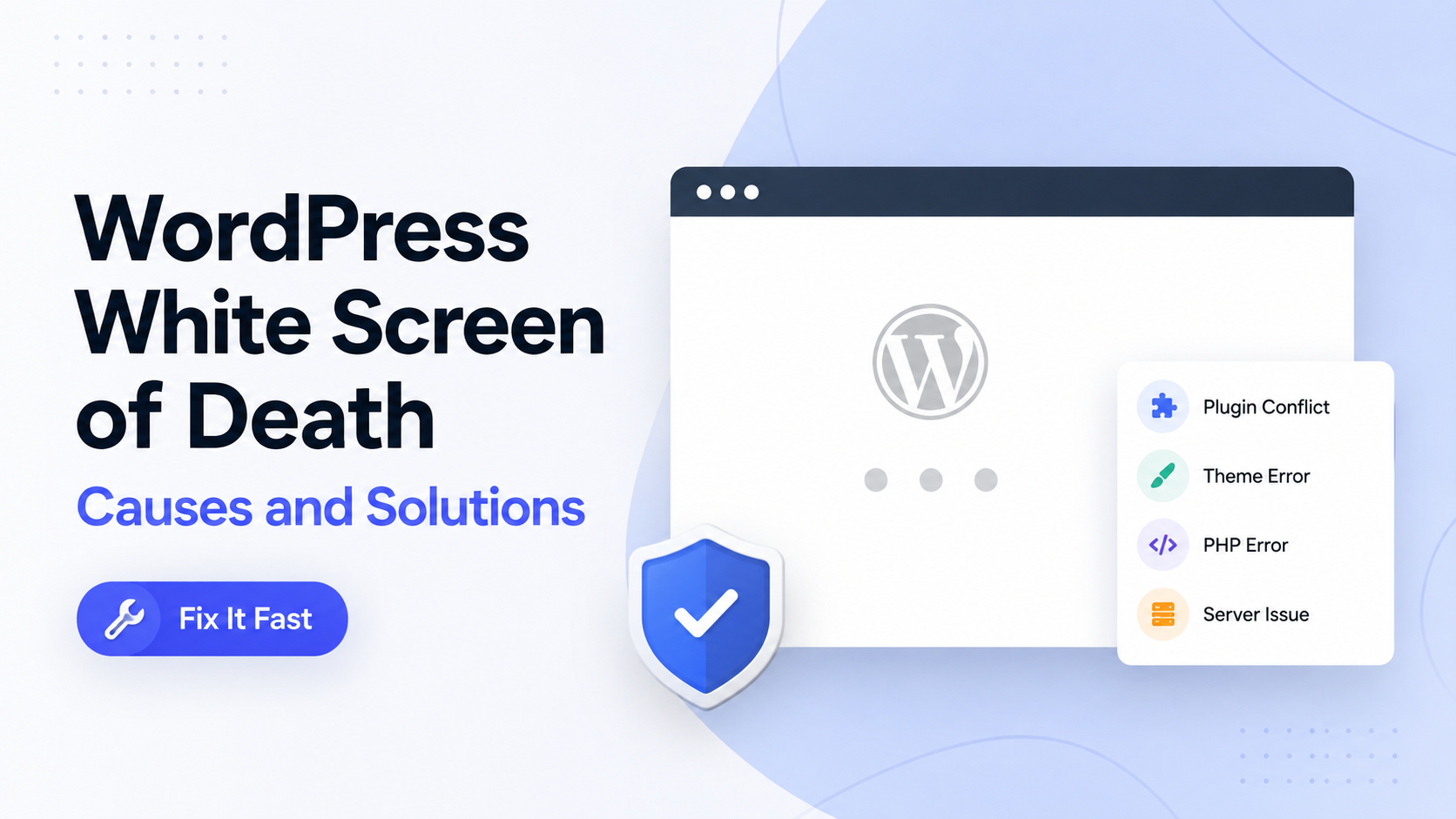
There is no single cause, and treating it like there is one is the biggest mistake in most troubleshooting guides. The blank screen can come from any of the following:
-
A plugin update that introduced a bug or an incompatibility with your PHP version
-
A theme, particularly a custom
functions.phpfile with a typo or a broken function call -
Insufficient PHP memory allocated to WordPress
-
An incompatible or outdated PHP version running alongside newer plugin code
-
Corrupted or incomplete WordPress core files, often from an interrupted update
-
A database connection or table issue
-
An aggressive caching layer serving a broken cached version of the page
-
Server misconfiguration or resource limits imposed by your hosting plan
-
A security compromise where malicious code was injected into a theme or plugin file
-
Manual code changes made directly to a live site
The reason plugin and theme conflicts are so common is simple: every plugin and theme runs PHP code inside the same WordPress environment, sharing the same memory and the same set of functions. If two plugins try to use the same function name, or a plugin calls a WordPress function that was removed in a recent core update, PHP throws a fatal error rather than a soft warning. This is also why compatibility matters more in WordPress than in many standalone applications.
What to Check Before Changing Anything
This is the identify stage of the troubleshooting process, and skipping it is why many people end up making random changes that do not fix anything.
Before touching a single file, answer these questions:
-
When did the white screen first appear? Check timestamps against any recent activity.
-
Did you or anyone else install, update, or delete a plugin or theme recently?
-
Did WordPress Core update automatically in the last day or two?
-
Did your hosting provider change your PHP version, perhaps as part of routine maintenance?
-
Did you or a developer edit
functions.php,wp-config.php, or any other core file directly? -
Is the white screen showing on the entire site, only certain pages, or only in the admin area?
If you recently ran an update and the site broke immediately afterward, understanding common WordPress update issues can save you a significant amount of guesswork, since update-triggered white screens usually point straight to a plugin or theme compatibility problem.
Also check whether yourdomain.com/wp-admin loads. If the admin area works but the public site does not, the problem is very likely isolated to your active theme. If both are blank, a plugin, PHP, or memory issue is more probable.
How to Enable WordPress Debugging Safely
This is the single most useful diagnostic step available, and it belongs early in the process because it turns a mysterious blank page into an actual, readable error.
Before editing anything, make a copy of it wp-config.php and save it somewhere safe. This file holds your database credentials and core configuration, so a backup means you can always undo a mistake.
To enable debugging:
-
Connect to your site using FTP or your hosting provider’s File Manager.
-
Open
wp-config.php, located in your site’s root directory. -
Find the line that reads
/* That's all, stop editing! Happy publishing. */. -
Just above that line, add the following:
This configuration logs every PHP error to a file /wp-content/debug.log without displaying errors publicly, which matters because publicly visible errors can reveal file paths and plugin names to anyone who visits your broken site, including bots looking for vulnerabilities.
Reload your site, then download and open debug.log. Look for a line containing “Fatal error.” It will typically name a specific plugin file, theme file, or core file along with a line number. That single line usually tells you whether you are dealing with a plugin, a theme, or a memory problem, which determines which section below you need next.
Once you have identified and resolved the issue, set WP_DEBUG back to false. Leaving debugging permanently enabled on a live site is a minor security risk and can also cause the log file to grow indefinitely.
How to Fix a Plugin Conflict
This is the isolate and fix stage for plugin-related errors, and it is the most common category of white screen.
If you have admin access:
-
Go to Plugins in your dashboard, select all, and choose Deactivate from the bulk actions menu.
-
Check if the site loads.
-
If it does, reactivate plugins one at a time, reloading the site after each one, until the white screen returns. The plugin you just activated is the cause.
If wp-admin is not accessible, you need FTP or File Manager access:
-
Navigate to
/wp-content/. -
Rename the
pluginsfolder to something likeplugins-disabled. WordPress cannot load a folder it cannot find, so this effectively turns off every plugin at once. -
Reload the site. If it works, the problem is a plugin.
-
Rename the folder back to
plugins, then rename individual plugin subfolders one at a time, testing after each rename, until you find the one causing the fatal error.
If you have a large number of active plugins, testing them individually can take a while. A faster approach is to disable half of them at once, check the result, and repeat with the half that remains suspect. This narrows the search dramatically faster than testing one by one.
Once you find the problematic plugin, check whether an update is available, since many conflicts are resolved by the developer shortly after a WordPress core update breaks compatibility. Also check the /wp-content/mu-plugins/ folder, since must-use plugins load automatically and are easy to overlook during troubleshooting. Choosing well-maintained WordPress plugins with a track record of regular updates significantly reduces how often this happens in the first place.
How to Fix a Theme Conflict
If disabling plugins did not resolve the issue, or if the admin area loads but the public-facing site is blank, your active theme is the likely cause, particularly if someone recently edited functions.php or applied a theme update.
-
Back up your current theme folder before making changes.
-
Via FTP or File Manager, navigate to
/wp-content/themes/. -
Rename your active theme’s folder, for example, from
my-themetomy-theme-disabled. -
WordPress will automatically fall back to a default theme such as Twenty Twenty-Four if one is present.
-
Reload the site.
If the site comes back, the theme is confirmed as the source. Open the theme’s functions.php file and look for the most recently edited section. A single missing semicolon, an unclosed bracket, or a broken snippet copied from a tutorial is enough to crash the entire site, because PHP treats these as fatal syntax errors rather than warnings.
If you do not have a default theme available, download one from the official WordPress theme directory, upload it through FTP, and then rename your active theme’s folder to trigger the fallback.
How to Increase WordPress PHP Memory
If your debug log shows “Allowed memory size exhausted,” WordPress ran out of the memory PHP allocated to it. This is common on sites using WooCommerce, page builders, or several resource-heavy plugins together.
Back up wp-config.php, then add this line above the “stop editing” comment:
phpCopydefine( ‘WP_MEMORY_LIMIT’, ‘256M’ );
If the error persists, your hosting server’s overall PHP memory limit may also need raising, which WordPress cannot control on its own. This usually requires either a .user.ini file in your root directory containing it or a request to your hosting provider, since some shared hosting plans cap memory regardless of what WordPress requests.
Raising memory limits treats the symptom, not necessarily the cause. If a specific plugin is consuming abnormal amounts of memory, increasing the limit may only delay the next crash. It is worth checking whether the memory exhaustion coincides with a particular plugin identified during the isolation steps above.
How to Check PHP Version Compatibility
PHP version mismatches cause a specific and often misunderstood category of white screen: everything worked fine yesterday, and today the site is blank, usually because a hosting provider silently updated PHP in the background or because you upgraded PHP manually expecting a performance boost.
Older plugins and themes sometimes use functions that were removed in newer PHP versions, while newer plugins may require PHP features that an outdated server does not support. Check your current PHP version in your hosting dashboard or through a plugin such as Site Health under Tools in your WordPress admin, if it is accessible.
Compare that version against the minimum requirements listed on each plugin’s and theme’s WordPress.org page. If a mismatch is likely, most hosting control panels allow switching PHP versions with a single click, which makes it easy to test a rollback to a previous version to confirm whether that resolves the white screen. Following a consistent process for safe WordPress updates including testing on a staging site before applying PHP or plugin updates on your live site, is the most reliable way to avoid this category of error altogether.
How to Restore WordPress Core Files
Corrupted core files typically happen when an automatic WordPress update is interrupted by a server timeout, leaving files truncated or missing. This is a less common cause than plugin or theme issues, but it is worth checking if debug logs point to a core file rather than something inside wp-content.
-
Download a fresh copy of the same WordPress version from WordPress.org.
-
Back up your existing
wp-contentfolder andwp-config.phpfile, since these hold your themes, plugins, uploads, and configuration and must not be overwritten. -
Upload the fresh
wp-adminfolders via FTP, replacing the existing ones. -
Do not overwrite
wp-contentorwp-config.php.
This process replaces only the core WordPress engine, leaving your content, plugins, and settings untouched. It is a safe operation as long as you avoid touching wp-content, since that folder contains everything unique to your site.
How to Clear WordPress and Server Cache
Sometimes the underlying issue has already been fixed, but the white screen persists because a cached version of the broken page is still being served. This is worth checking early since it takes seconds and can rule out a false alarm.
First, open the site in a private or incognito browser window. If it loads correctly there but not in your regular browser, simply clearing your browser cache resolves it.
If you use a caching plugin, clear it manually through FTP if the dashboard is inaccessible:
-
WP Rocket: delete
/wp-content/cache/wp-rocket/ -
W3 Total Cache: delete the contents of
/wp-content/cache/ -
LiteSpeed Cache: delete
/wp-content/cache/litespeed/
If your host provides server-level caching, such as through a managed WordPress platform, clearing it usually requires the hosting dashboard rather than FTP. Overly aggressive caching combined with poor WordPress website speed optimization can also mask real errors by serving stale pages, which is another reason to rule out caching before assuming the problem is more serious than it is.
How to Troubleshoot Database Problems
If the white screen coincides with database-related warnings in your debug log, or if you recently migrated hosts, restored a backup, or edited database tables directly, the database itself may be the source.
Check wp-config.php for correct database name, username, password, and host values, particularly after a migration where these details commonly change. A single incorrect character here typically produces a “database connection error” message rather than a pure white screen, but incomplete or corrupted table data can still trigger PHP fatal errors during page rendering.
If you have phpMyAdmin access through your hosting control panel, check whether core WordPress tables are present and intact. Running the built-in repair tool, accessible by adding define('WP_ALLOW_REPAIR', true); to wp-config.php and visiting /wp-admin/maint/repair.php, can fix minor corruption. Remove this line again immediately after use, since leaving it active allows anyone with the URL to run repairs on your database.
Database-level troubleshooting carries more risk than plugin or theme changes, since a mistake here can affect your actual content. If you are not comfortable working directly in PHP MyAdmin, this is a reasonable point to involve your hosting provider or an experienced developer rather than experimenting on a live database.
How to Recover WordPress When wp-admin Is Not Working
If the entire site, including the login screen, shows a blank page, your recovery options move entirely to file-level access. This is where FTP, or your hosting file manager, becomes essential, since there is no dashboard to work from.
Follow the sequence already covered in this guide, but perform it entirely through file access: enable debugging by editing wp-config.php directly, disable plugins by renaming the plugins folder, and switch themes by renaming the active theme’s folder. Each step should be followed by a straightforward test, simply reloading the site in a private browser window.
If none of these steps restore access and you suspect deeper corruption, restoring a recent backup is usually faster and safer than continuing to troubleshoot blind. This is exactly why maintaining regular backups matters more than any single troubleshooting technique.
When the Problem May Be Security Related
Not every white screen is an innocent compatibility issue. If any of the following apply, treat the situation as a potential compromise rather than a routine bug:
-
Unfamiliar files or folders appear in
wp-contentthat you did not install -
The debug log references a file with an unusual name or one located outside normal plugin and theme directories
-
The white screen appeared without any update, plugin change, or code edit on your part
-
Your hosting provider has flagged unusual outbound traffic or resource spikes from your account
Malicious code injected into a theme or plugin file can produce fatal errors identical to an ordinary bug, so the symptoms alone do not distinguish the two. If you notice unfamiliar files or unexpected changes, review your WordPress security before continuing with other troubleshooting steps, since restoring a compromised site without addressing the underlying vulnerability usually results in the same problem recurring.
When to Contact Your Hosting Provider
Some causes of the white screen sit outside what you can fix from within WordPress itself. Contact your host when:
-
Enabling
WP_DEBUGproduces no error log at all, which usually means server-level error logging is misconfigured -
You have confirmed the memory limit set in,
wp-config.phpbut the error persists, suggesting a server-imposed cap -
PHP version changes are not available to you directly in your hosting dashboard
-
You suspect a server outage, resource limit, or a hardware-level issue rather than a WordPress-specific bug
-
You need help restoring a backup and do not have direct database or file access
Most hosting providers keep server-side error logs separate from the WordPress debug log, and these can reveal problems that never make it into debug.log, such as server timeouts or resource throttling.
How to Prevent the White Screen of Death
Preventing this error consistently comes down to maintenance discipline rather than any single tool:
-
Keep a current backup schedule so recovery never depends on the troubleshooting steps above
-
Test plugin and theme updates on a staging site before applying them to your live site
-
Follow a consistent process for safe WordPress updates rather than allowing everything to auto-update simultaneously
-
Remove plugins and themes you no longer actively use, since inactive code can still conflict during core updates
-
Monitor your site’s PHP version and confirm plugin compatibility before your host applies a version upgrade
-
Set a realistic PHP memory limit proactively rather than waiting for a crash to reveal it was too low
-
Review file permissions after any migration or backup restoration
-
Keep WordPress core, themes, and plugins updated on a regular schedule rather than letting them fall far behind
WordPress White Screen of Death Troubleshooting Checklist
-
Confirm whether wp-admin loads separately from the public site
-
Back up wp-config.php, the active theme, and ideally the full site
-
Enable WP_DEBUG and WP_DEBUG_LOG, then read debug. log for the fatal error line
-
If the log points to a plugin, disable plugins one at a time or rename the plugins folder via FTP
-
If the log points to a theme, switch to a default theme temporarily
-
If the log mentions memory exhaustion, raise WP_MEMORY_LIMIT in wp-config.php
-
Check PHP version compatibility against your plugins and theme requirements
-
Clear browser cache, caching plugin cache, and any server-level cache
-
Check for database connection errors or corrupted tables if the above steps do not resolve it
-
Review recent files for anything unfamiliar if no clear cause emerges
-
Contact your hosting provider if server logs show nothing or limits appear server-imposed
-
Disable WP_DEBUG once the site is confirmed working
-
Verify the homepage, admin login, key pages, and any forms function correctly
-
Document the cause and update your maintenance routine to prevent a repeat
Conclusion
The WordPress white screen of death looks identical no matter what caused it, which is exactly why guessing at fixes rarely works and often makes troubleshooting take longer. Working through identify, isolate, fix, verify, and prevent, starting with debugging and moving toward more advanced recovery only when needed, gets your site back online with the least risk of causing a second problem on top of the first.
Once the site is restored, take the time to confirm the actual cause rather than simply moving on. Understanding whether it was a plugin, a PHP mismatch, a memory limit, or something more serious gives you a clear way to prevent the same white screen from returning the next time you update your site.

Jigar Pandya
Jigar Pandya is a Technology and WordPress professional with over 6 years of experience building and improving websites. His work covers WordPress development, website performance, and modern web technologies, with a focus on creating websites that are fast, reliable, and easy to use.