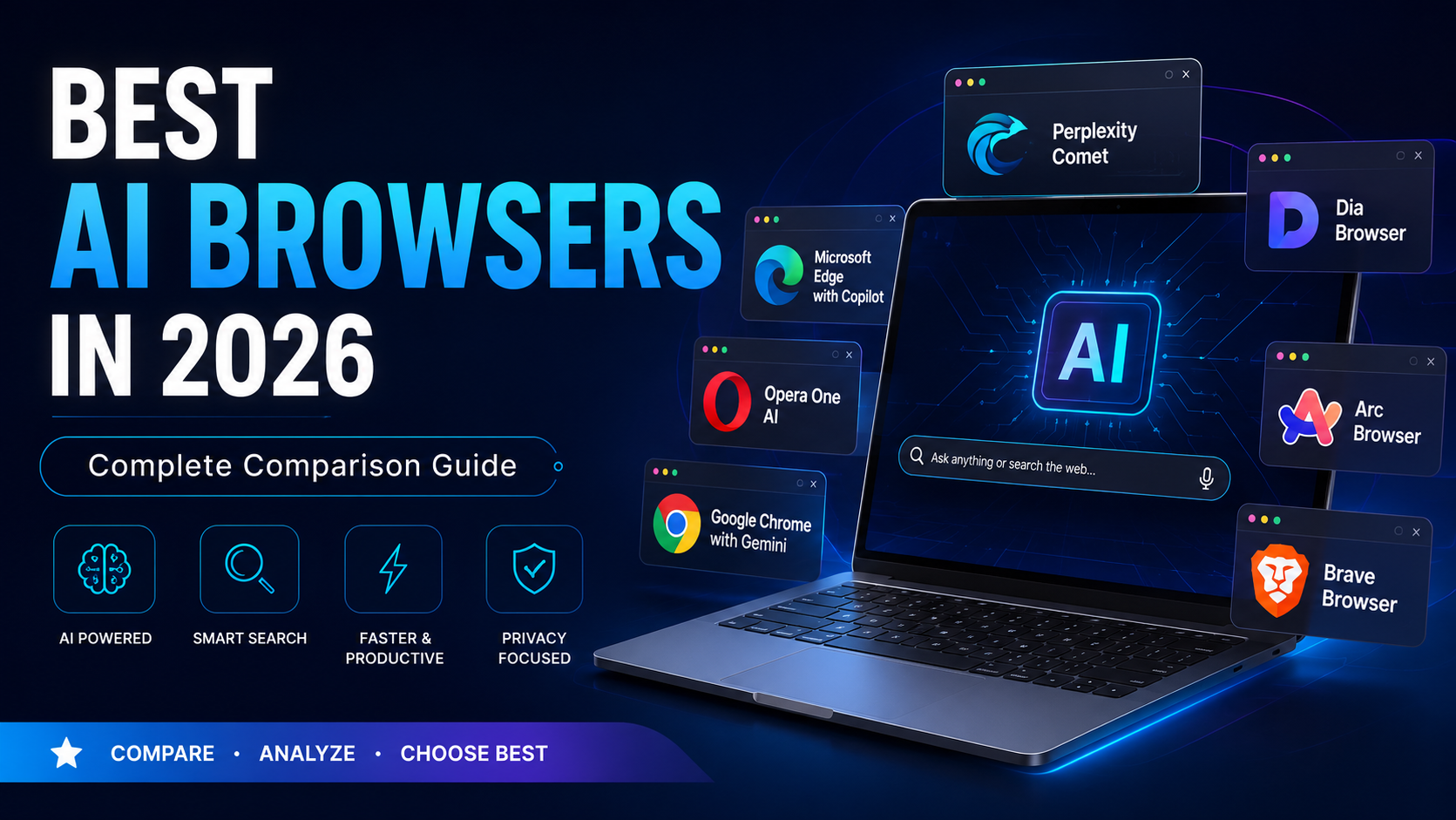
Search bars used to be the front door to the internet. Now they’re becoming optional. The best AI browsers in 2026 have turned that simple address bar into something closer to a research assistant, a writing partner, and a task manager rolled into one piece of software.
This isn’t a marketing gimmick. If you’ve used Perplexity Comet to plan a trip or asked Copilot inside Edge to pull numbers out of a PDF without opening it, you already know the difference. A browser that understands what’s on your screen changes how you work, not just how you search.
This guide walks through what an AI browser actually is, how the leading options stack up against each other, and which one fits your specific situation, whether you’re cramming for exams, shipping code, or running a small business on a tight schedule.
What Is an AI Browser?
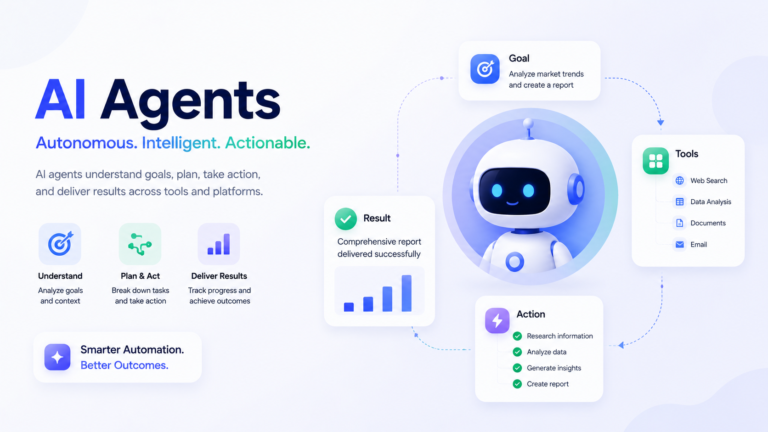
An AI browser is a browser with intelligence built into its core rather than bolted on as a plugin. It reads the page you’re on, remembers context across tabs, and can act on instructions instead of just displaying information.
The distinction matters. A regular browser with a chatbot extension still treats AI as a separate app living in a sidebar. A true AI-powered browser blends the assistant into the browsing engine itself so it can:
-
Summarize a 40-minute video without you watching it
-
Pull answers from three open tabs at once
-
Fill out a form based on your saved preferences
-
Explain a block of code the moment you highlight it
Some of these tools go a step further and complete multi step tasks on their own. That’s what people mean when they call something an agentic browser: it doesn’t just answer questions; it takes action.
Why AI Browsers Are Becoming Popular
Three years ago, most people juggled a browser, a note-taking app, and ChatGPT in separate windows. That workflow is disappearing fast.
Here’s what’s driving the shift:
-
Research that used to take 20 open tabs now takes one conversation
-
Long documents and articles get condensed in seconds instead of skimmed
-
Repetitive browser tasks, like comparing prices or drafting replies, get automated
-
Developers get inline explanations without leaving the page
-
Students can ask follow-up questions directly on the material they’re reading
-
Some browsers now process AI requests locally, addressing a real privacy concern that cloud-only tools couldn’t answer
None of this makes traditional browsing obsolete. It makes the browser itself smarter about the work you’re already doing.
Best AI Browsers in 2026
Perplexity Comet
Comet is Perplexity’s answer to what a browser should look like when search and AI stop being separate products. It replaces the traditional address bar with an AI search browser that cites its sources for every answer, and it can carry out tasks like comparing flight prices or summarizing a thread of emails.
Strengths: fast, source-backed research; genuinely useful task automation; transparent citations that make fact-checking easy.
Weaknesses: full functionality needs a Perplexity account; extension support is still catching up to Chrome.
Best for: researchers, journalists, analysts, and students who need traceable answers, not just quick ones.
Pricing: free tier, with Perplexity Pro unlocking deeper features. Platforms: Windows, macOS.
Dia Browser
Dia was built around one idea: let people chat with whatever they have open. Instead of switching to a separate AI tab, you talk to your existing tabs directly, and Dia pulls context from all of them.
Strengths: genuinely smooth for multitasking; strong built-in writing assistant.
Weaknesses: smaller extension library than Chrome or Edge.
Best for: writers and content creators who live across multiple reference tabs while drafting.
Pricing: freemium. Platforms: macOS, with Windows rolling out.
Microsoft Edge with Copilot
Edge remains the most enterprise-ready browser with ChatGPT-style assistance since Copilot runs on OpenAI’s models and plugs directly into Word, Excel, and Outlook. This is the closest thing to a browser with ChatGPT built for corporate use.
Strengths: deep Microsoft 365 integration; strong admin controls for IT teams.
Weaknesses: heavier on system resources; some features need a Microsoft account to unlock.
Best for: professionals whose day revolves around documents, spreadsheets, and email.
Pricing: free, with Copilot Pro as a paid add-on. Platforms: Windows, macOS, mobile.
Opera One AI (Aria)
Opera’s Aria assistant sits inside a browser already known for tab organization. It’s less about deep research and more about convenience layered onto everyday browsing.
Strengths: lightweight; excellent tab grouping through “tab islands.”
Weaknesses: Aria’s answers are noticeably less precise than dedicated AI search browsers like Comet.
Best for: casual users who want AI features without switching their whole setup.
Pricing: free. Platforms: Windows, macOS, Linux, mobile.
Arc Browser
Arc reimagines the browser interface itself, and its AI features, like automatic page previews and split view summaries, are secondary to its design-first philosophy.
Strengths: best-in-class visual organization; genuinely enjoyable to use daily.
Weaknesses: AI capabilities are lighter than fully agentic competitors.
Best for: designers and creatives who value workspace aesthetics as much as functionality.
Pricing: free. Platforms: macOS, Windows.
Brave Browser
Brave built its reputation on blocking trackers before AI was part of the conversation, and its Leo assistant keeps that same philosophy. Some processing happens locally, which appeals to anyone wary of cloud data collection.
Strengths: strongest privacy stance in this list; no ad tracking by default.
Weaknesses: Leo can’t match Comet or Copilot on complex, multi-step tasks.
Best for: privacy-focused users who still want basic AI convenience.
Pricing: free. Platforms: Windows, macOS, Linux, mobile.
Google Chrome with Gemini
Chrome’s scale gives Gemini integration an advantage nobody else can match: instant compatibility with the extensions and workflows people already rely on. It functions as a genuine AI web browser now, not just a search engine wrapper.
Strengths: massive extension ecosystem; tight integration with Docs, Sheets, and Gmail.
Weaknesses: heavier memory use; Google’s data practices remain a valid concern for privacy conscious users.
Best for: anyone already embedded in Google’s ecosystem.
Pricing: free. Platforms: all major platforms.
SigmaOS
SigmaOS treats browsing as a team activity, with workspace-based tabs and AI-generated meeting notes built for collaborative work rather than solo research.
Strengths: strong for project based teams; useful auto summarization of shared documents.
Weaknesses: smaller community, fewer integrations than mainstream browsers.
Best for: small teams and project managers coordinating across multiple threads.
Pricing: freemium with team tiers. Platforms: macOS primarily.
Sidekick Browser
Sidekick focuses on turning web apps into something closer to native desktop apps, with lightweight AI summaries layered on top rather than positioned as the main feature.
Strengths: excellent for managing many work apps in one place.
Weaknesses: AI features feel like an afterthought compared to Comet or Dia.
Best for: freelancers juggling multiple client dashboards and tools.
Pricing: free with premium workspace options. Platforms: Windows, macOS.
Firefox with AI Integrations
Mozilla has deliberately avoided building a single proprietary AI model into Firefox. Instead, it lets you choose which chatbot sidebar to connect, whether that’s ChatGPT, Gemini, or another provider, while keeping its tracking protection intact.
Strengths: open source transparency; flexibility to pick your own AI provider; excellent default privacy.
Weaknesses: feels less “native” than browsers built around AI from the ground up.
Best for: privacy-conscious professionals and open-source advocates.
Pricing: free. Platforms: all major platforms.
Which AI Browser Is Best for Students?
Perplexity Comet is the strongest pick for students, since its citation backed answers make it far easier to verify sources for academic work. Firefox with AI integrations is a solid free alternative for students who want to choose their own assistant without paying for a subscription.
Which AI Browser Is Best for Developers?
Chrome with Gemini and Edge with Copilot lead here, mainly because both integrate with existing developer tools like GitHub and VS Code extensions rather than forcing a separate workflow. Inline code explanations and quick debugging support make both genuinely useful during actual coding sessions, not just for casual browsing.
Which AI Browser Is Best for Professionals?
Edge with Copilot is the clear choice for office based professionals. Its integration with Outlook, Word, and Excel means it can summarize a report or draft a reply without you leaving the document you’re working in, which is exactly what a browser with AI for work should do.
Privacy and Security Considerations
AI browsers don’t all treat your data the same way, and this is worth taking seriously before you commit to one.
-
Cloud-based AI, used by Chrome, Edge, and Comet, sends your queries to remote servers for processing
-
Local AI processing, available in parts of Brave and Firefox, keeps more activity on your own device
-
Enterprise-grade controls in Edge and Chrome give IT teams the ability to manage data policies centrally
-
Data retention and collection policies vary widely, and Brave and Firefox are generally considered the most conservative in this list
If you handle client information or sensitive company data, read the actual privacy policy before switching, not just the marketing page.
Performance Notes
Resource usage differs more than most people expect. Brave and Opera tend to run lighter on RAM, while Chrome and Edge use noticeably more memory once several tabs and AI features are active. Arc and Sidekick start up quickly thanks to lighter AI processing, and Brave and Firefox tend to be gentler on laptop battery life during extended sessions.
Pros and Cons of AI Browsers
Pros: faster research, less app switching, built-in automation for repetitive tasks, better understanding of what’s actually on your screen.
Cons: higher resource usage in some cases, real privacy trade offs with cloud based processing, a learning curve when switching from a familiar browser, and inconsistent offline functionality.
Should You Switch to an AI Browser?
If your work involves heavy research, writing, or constant tab switching, switching makes sense. If you browse casually or run an older device where every bit of RAM matters, a traditional browser is still the more practical choice.
Before switching fully, export your bookmarks, test the AI features for about a week, and confirm your usual extensions still work. A rushed migration is the most common reason people abandon a new browser within days.
Common Mistakes to Avoid
-
Picking a browser purely for its AI features while ignoring speed and stability
-
Skipping the privacy policy entirely
-
Stacking multiple AI extensions on top of an already AI native browser
-
Not checking whether critical extensions are compatible before switching
-
Underestimating how much AI processing can slow down an older laptop
Expert Tips by User Type
Students should lean on Comet for citation backed research. Developers get more mileage from Chrome or Edge paired with dedicated coding tools. Writers benefit most from Dia’s tab aware chat during drafting. Marketers can use summarization features to digest competitor content quickly. Business users should prioritize Edge for its Microsoft 365 depth. Remote workers often do better with SigmaOS or Sidekick for workspace organization, and power users can combine Arc’s interface with a privacy-focused secondary browser like Brave for sensitive tasks.
Conclusion
There isn’t one browser that wins across every category, and that’s the honest takeaway from comparing the best AI browsers available in 2026. Perplexity, Comet, and Edge with Copilot lead for research depth; Edge with Copilot is unmatched for Microsoft-heavy workflows; Brave and Firefox remain the safest bets for privacy; and Chrome with Gemini works best if you’re already living in Google’s ecosystem.
The right move isn’t picking whatever ranks highest on a list. It’s testing two or three options against your actual daily tasks for a week before committing to one.

Jigar Pandya
Jigar Pandya is a Technology and WordPress professional with over 6 years of experience building and improving websites. His work covers WordPress development, website performance, and modern web technologies, with a focus on creating websites that are fast, reliable, and easy to use.